
Property Agreements: Closing the Deal
No matching results on this page
Try a different word, or clear the search box.
A Property Agreement is what actually closes a sale or lease with both sides — the buyer or tenant, and the property owner. Booking the viewing and running the pipeline is only half the job; this page covers the other half, and how the two should fit together.
Sales Agents aren't just running the Listing Leads pipeline — the same agent who booked the viewing is usually the one who creates the agreement afterward. This page is written for whoever does that, not just for Admins configuring the module.
Menu: open a property → Create Agreement, or from a lead's Matching/Offer tab
An agreement links three parties: the property, the owner (pulled automatically from the property's own customer record — the owner is a normal CRM contact, not a separate entity), and the buyer or tenant. Commercial terms are tracked separately for each side: an agreed price, plus a commission percentage and total for the owner and another for the buyer, each with its own VAT treatment (not included, inclusive, or exclusive). Key dates include the transaction date, the agreement date, and — for leases — a rent start and end date. Extra fees such as registration or agency fees can be added from a dictionary that automatically offers different options depending on whether the deal is a sale or a rental.
An agreement record
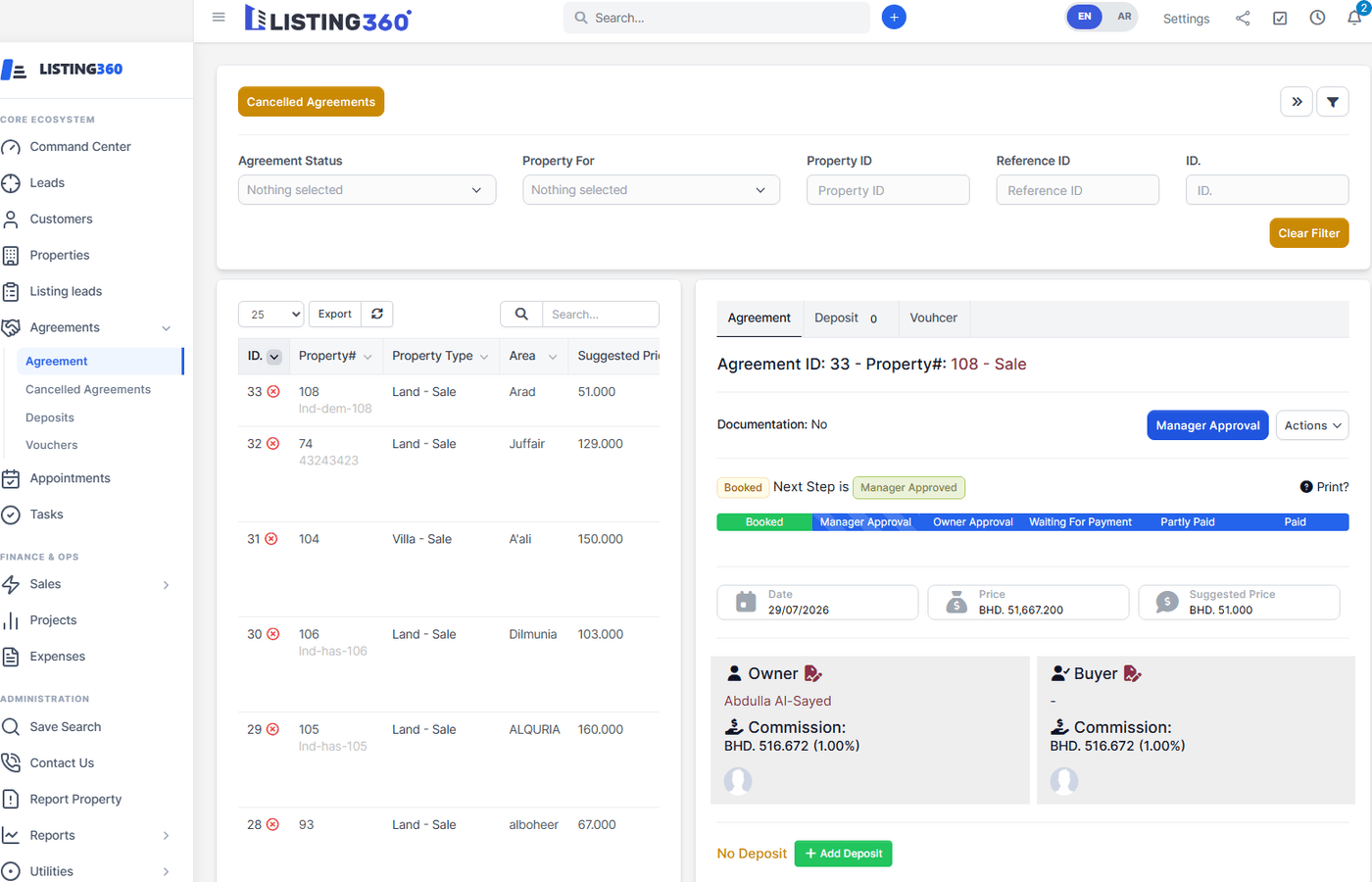
The status bar at the top always shows where the deal stands; Owner and Buyer sit side by side with their own commission figures.
Every agreement moves through a fixed sequence of statuses, each gated by its own permission.
1Booked
The agreement is created and saved — the starting point for every deal.
2Manager Approved
A staff member holding the Manager Approval permission signs off internally. This automatically emails the property owner a link into their client-portal view of the agreement.
3Owner Approved
A staff member holding the Owner Approval permission confirms the owner's side is settled and advances the status — see the callout below on how this relates to the owner's own signature.
4Waiting For Payment
Reached by using Generate Invoice, which creates a draft invoice from the agreement's commission total. Requires the standard CRM Create Invoices permission in addition to Property Agreements access.
5Partially Paid / Paid
Set manually, or — if your installation has "auto-change agreement status" enabled — automatically as the linked invoice's payment status changes.
An agreement can also be Cancelled at any point before it's fully paid — this requires both Delete and Approval Control permissions, and is blocked while any non-cancelled invoice is still linked to it.
The Agreements list, showing every status side by side
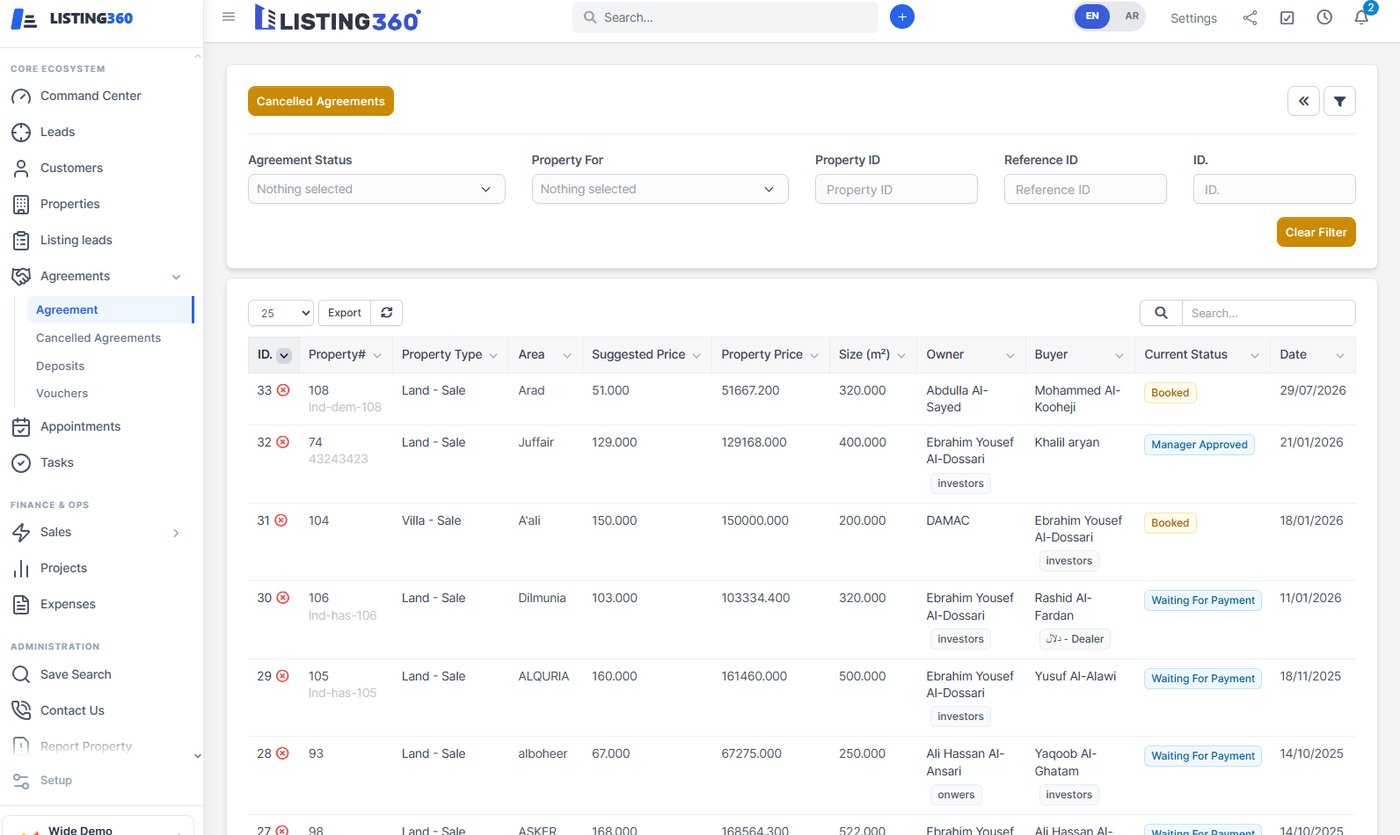
Each row shows the property, owner, buyer, current status, and price at a glance.
The owner's digital signature and the "Owner Approved" status are two separate things
The property owner can log into the client portal (or use an emailed signing link, no login needed) to review the agreement and draw a digital signature — this is real and it's tracked on the record. But signing does not by itself move the agreement to Owner Approved. That status change is a separate, deliberate action taken by staff holding the Owner Approval permission. Treat the owner's signature as evidence to check before advancing the status yourself, not as something that advances it automatically.
If the deal started life as a listing lead, the agreement is created from that listing lead — and the system enforces it. A Property Agreement cannot be created behind the back of a listing lead that is still open for the same buyer and the same property.
The guided flow
A listing lead's Matching tab, linked to its agreement
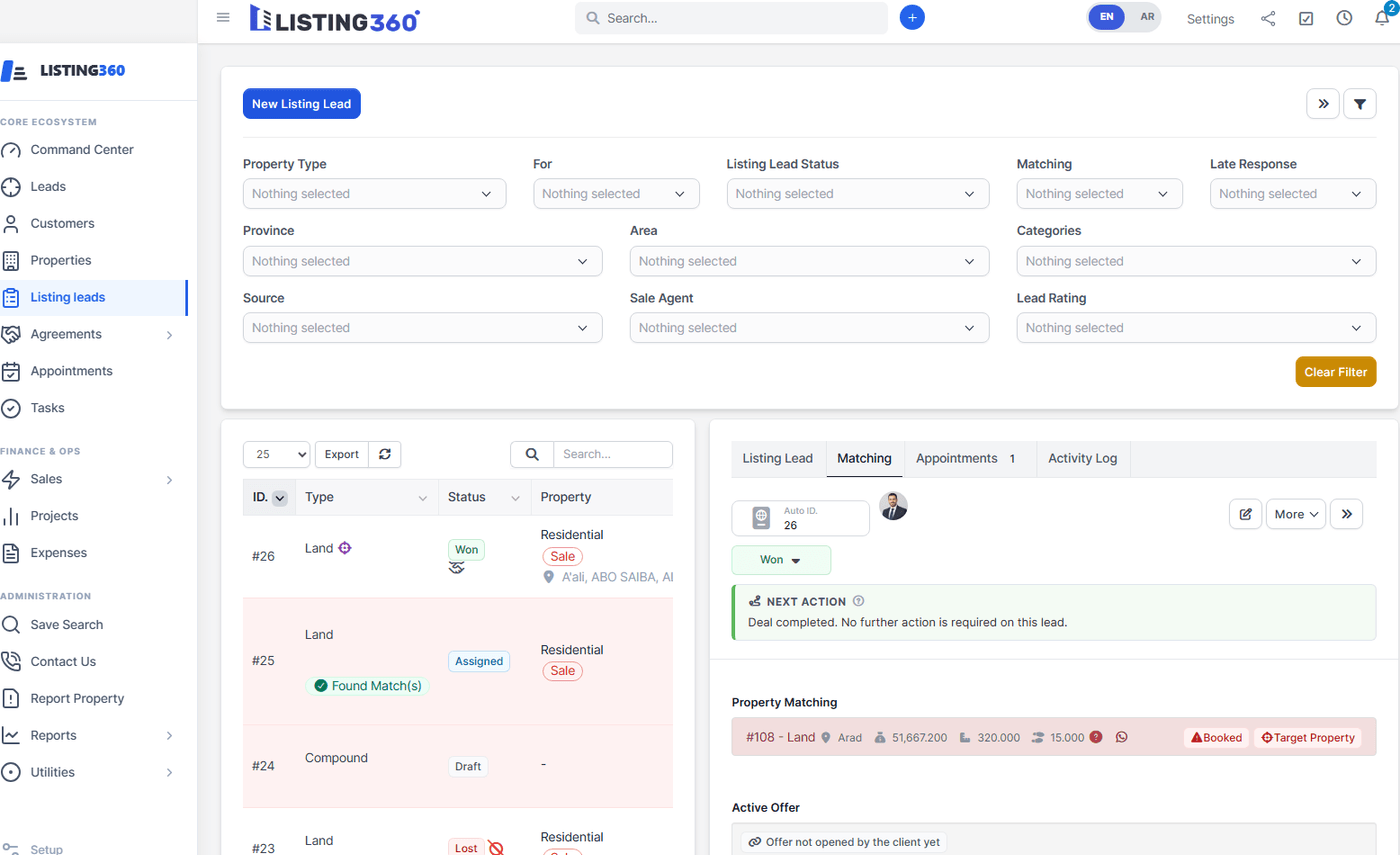
The green badge on the offer links straight to the agreement it produced — this lead's Won status and its agreement are the same event.
Creating the agreement from the property page is blocked while a listing lead is still open
Open the Create Agreement form on a property that has open listing leads and a warning at the top of the form lists them, each with a link straight to the listing lead. Choose a buyer who owns one of those listing leads and the form refuses to submit, telling you which listing lead to finish instead. The check runs again on the server, so it holds however the form is submitted.
It is scoped to the buyer, not the property: a property is routinely offered to several listing leads at once, and a walk-in buyer with no open listing lead of their own is unaffected. What always applies is that the buyer on an agreement must be an active Client — a contact who is still only a CRM Lead or a Website Lead has to be converted first, which the listing-lead flow does for you.
Searching the Buyer field tells you why a name is missing
The Buyer field on a Property Agreement only lists Clients, so a contact who is still a lead used to return nothing at all — the most common way this rule was hit was an agent typing a phone number and seeing an empty list with no explanation.
That search now also looks at the contacts on open listing leads for this property. If the name or number you typed belongs to one of them, they appear greyed out and unselectable, labelled "still a lead on listing lead #N", so you can see the person exists and what has to happen next. Phone matching compares digits only, so a number typed with spaces, dashes or a country code still finds it. If nothing matches at all, the empty message points at the same rule rather than just saying "no results".
A deposit is its own record attached to an agreement, not just an amount field — and it can optionally generate a credit note automatically. A voucher is a separate record attached to a specific deposit, confirming the deposit was properly documented; adding a voucher marks its parent deposit as vouchered. This distinction is exactly what the Command Center's voucher compliance score measures: vouchers issued against deposits collected, counted only for agreements that trace back to a Listing Lead. A deposit can only be removed while the agreement isn't already Paid or Cancelled, and its voucher must be removed first.
The Deposits list, across all agreements
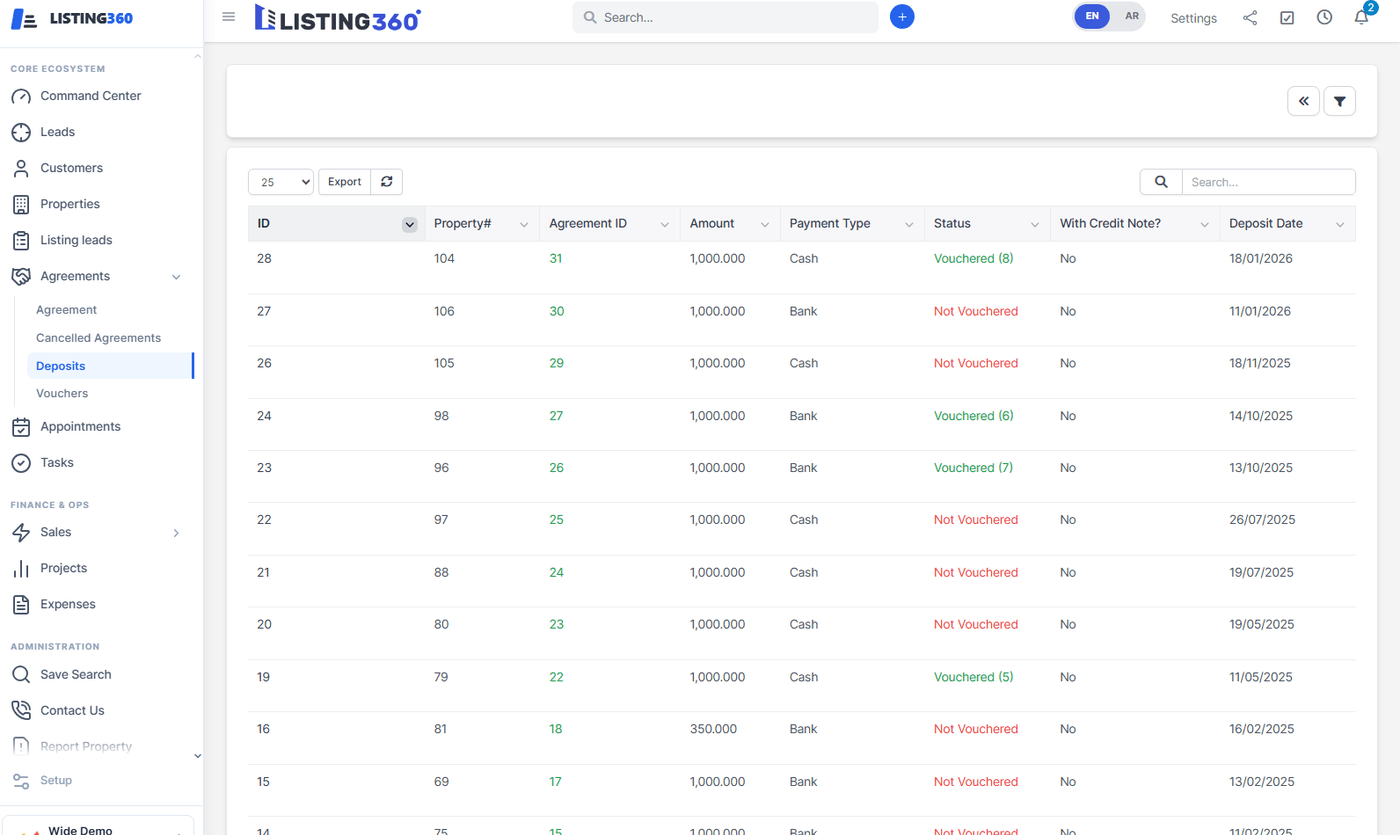
Vouchered deposits show the voucher count in green; deposits still waiting on their voucher show red.
Whether a property is for Sale or for Rent is set on the property itself, and it shapes the agreement in two ways: for a Sale, the running total of deposits is capped at the agreed price, so staff can't over-collect; for a Rent, there's no such cap. The extra-fee options offered on the agreement form also change automatically depending on Sale vs. Rent.
| Permission | Grants |
|---|---|
| View (own) / View (Global) | See only your own agreements, or every agreement. |
| Create / Edit / Edit own / Delete | Standard record-level access. |
| Manager Approval | Advance an agreement from Booked to Manager Approved. |
| Owner Approval | Advance an agreement from Manager Approved to Owner Approved. |
| Approval Control | A broader override that can perform every approval step on its own, and is required (with Delete) to cancel an agreement. |
Property Agreements has its own permission group under Staff → Permissions, separate from both the base Properties permissions and the Listing Leads permissions — and generating an invoice from an agreement additionally requires the standard CRM Create Invoices permission.
Looking for the pipeline that leads up to this point — Qualifying, Matching, offers, and the visit verdict? That's covered in Leads Management & RevOps and the Admin Guide's Listing Leads section.